Using the History Grid Control
 Use the History Grid control as the main vehicle to view and edit* detailed measurement data for a single selected Node. You can create up to eight instances of this control.
*Note: Editing functionality is only available in systems licensed for FULL mode.
History data for Device, Gas Device, Liquid Device, or Station Nodes is available for viewing in this control. You can view data for one Node at a time, selected from the filtered Node Chooser results.
The History grid plays a central role in producing valid measurement data, and can access a large variety of relevant data in order to display the data necessary for analysis. The grid can be quickly customized to display only the data needed for the current analysis task, and it can then be quickly changed again to facilitate the next analysis task. In this manner a large amount of measurement data can be validated and edited from this one control, switching Nodes and data views as often as is necessary to achieve acceptable measurement data.
Records causing exceptions can also be identified and acted upon using this control. Suspect records can optionally be identified by color (via settings in the Options pane) and accessed to ignore the exceptions associated with selected records (via the context menu). You can also multi-select history data records generating exceptions and then proceed to ignore the associated exceptions in a single action.
Note: The option to ignore exceptions via the History Grid control is provided as a convenience, to quickly handle exceptions that have already been analyzed on a more individualized basis, not to circumvent the robust functionality available in the Exceptions control. The more detailed views into specific data circumstances and the overview of comprehensive patterns available in the Exceptions control contribute to effective exceptions analysis and management. Exceptions functionality provided via the History Grid control should be seen as an adjunct to that provided in the Exceptions control. See Ignoring Exceptions for more information about the process and implications of exceptions handling.
Unsaved data edits made in the History Grid control can also be viewed in a History Graph control using the same Node and a similar time window, by refreshing the History Graph control to view the unsaved History Grid edits. In this way, the controls can be used in conjunction to create an environment in which you can view the effects of data edits before saving them. See Using the History Graph Control for more information.
In cases where Volume, Mass, or Energy values are not provided by the device, the CygNet Measurement system will automatically calculate and provide the values, and those values will appear in the History Grid. If all required volume/mass/energy values for a device are missing, therefore all required values are system-calculated, this automatic calculation process produces a Data Source value of System Calculated for the record, and sets the VCF value equal to 1. See Data Source Values and VCF in the CygNet Measurement Concepts topic for more information.
By default, the History Grid control is set to use the Session Node and Session options. You cannot set the Session Node from this control.
Each row of the grid displays historical data for a single selected device or station. For a Node that is station meter (a Gas Meter Node set to also function as a station), select in the toolbar whether to view its data as a device or station. Each column represents a category of data.
You can edit process variable data directly from the History grid. Within a single numerical data column, you can also choose to view the average and sum of selected data cells. Optionally, you can also apply grid color to further identify records containing suspect data. The control toolbar and the context menus allow you additional options to customize the view of data in the history grid and to perform edits.
Notes:
Editing can only be performed from one History Grid at a time, although multiple History Grid controls can be open simultaneously.
While performing edits in one History Grid control, a lock icon  will appear in the status bar of each additional instance of a History Grid control to indicate that it is currently read-only. Absence of the read-only icon indicates that the History Grid control you are viewing is currently editable.
When multiple open History Grid controls display the same Node data, edits entered in the editable control will appear in the additional controls. If a new History Grid control is opened, you must refresh the control to display any unsaved edited data.
When edits are performed in the History Grid control, History Graph controls displaying the same Node data can access the unsaved edits by refreshing the History Graph control.
You must have proper security authorization to perform these actions. See FMS Security for information about configuring security access for the History Grid control.
See EFM Data Items in the Devices section for more information about the data group elements that can be mapped to FMS data items.
See Editing Data in the History Grid for more information about editing.
See CygNet FMS History Grid Control for more information about configuring this control in CygNet Studio.
See FMS Explorer User Interface for more information about the FMS Explorer user interface.
Viewing History Grid Data
Use the History Grid control Chooser pane (unless the Use Session Node option is selected in the Options pane) and Options pane to filter the data to show in the grid. Either pane can optionally be displayed or pinned to the left side.
Chooser Pane
In the embedded Node Chooser for the History Grid control, select the Nodes you want to view data for from the Device, Gas Device, Liquid Device (periodic only), or Station Node categories. Further filter the Nodes by name, description, or ID as desired. See Using the Node Chooser Control for more information.
Options Pane
In the Session section of the Options pane, define the values for the data you would like to view. In the History Grid section, define additional display options.
|
Options Pane |
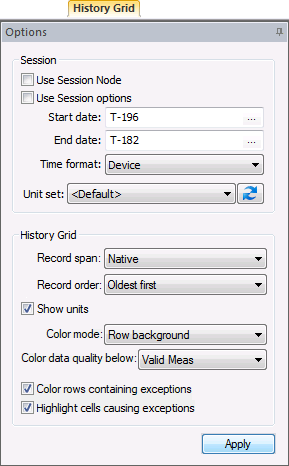
History grid control options are as follows.
| Option | Description |
|---|---|
| Session | |
|
Use Session Node |
Click the check box to select/clear the option to Use Session Node instead of using the chooser. See Session Node for more information. Notes: The Use Session Node check box is selected by default for Data controls (Alarm, Configuration, History Graph, History Grid, and Raw Data). The Use Session Node check box is cleared by default for Summary controls (Dashboard, Exceptions), Reports controls, and Admin controls (Balance, Jobs; not applicable to Close Period, PPA). |
|
Use Session options |
Click to select/clear the option to Use Session options instead of entering a time window and time format. Notes: The Use Session options check box is selected by default for Data controls (Alarm, Configuration, History Graph, History Grid, and Raw Data). The Use Session options check box is cleared by default for Summary controls (Dashboard, Exceptions), Reports controls, and Admin controls (PPA, Balance, Jobs; not applicable to Close Period). |
|
Start date |
Date selections are in Contract days (C). Select the starting date, unless Use Session options is selected. Type the date into the text box or click ... to Select Date. See Selecting Date and Time for more information. |
|
End date |
Date selections are in Contract days (C). Select the ending date, unless Use Session options is selected. Type the date into the text box or click ... to Select Date. See Selecting Date and Time for more information. |
|
Time format |
Click to access the drop-down menu to select the desired time format in which to view history data, unless Use Session options is selected. Options are as follows.
Default value is Device time. |
|
Unit set |
Select a unit set in which to view the data. Options appear in the drop-down menu, which is populated by the unit sets defined in the service, and includes a default unit set. |
|
|
Click to Refresh the available unit set list. |
| History Grid | |
|
Record span |
Click to access the drop-down menu to select a Record span for display of history data. Options are as follows.
Default value is Native for Device data mode, Hourly for Station data mode. |
|
Record order |
Click to access the drop-down menu to select a Record order for display of history data. Options are as follows.
Default value is Oldest first. |
|
Show units |
Click the check box to select/clear display of data units in the column headers of the History grid, where applicable. Default value is cleared (units not displayed). |
|
Note: This property is made available for device data mode only; the option is disabled (appears dimmed) if Station data mode is selected for a station meter Node. Click to access the drop-down menu to select a grid Color mode to use to visually identify problematic records by applying color to the data grid. Options are as follows.
Default value is Row background. Note: Grid color selections other than "None" will automatically apply color to records based on their Data Quality (primary precedence) or Data Source (secondary precedence) values. For grid element color options other than "None" you can optionally color records with low data quality values and/or records having, or cells triggering, exceptions. To visually identify these problematic records, use the following Color data quality below, Color rows containing exceptions, and/or Highlight cells causing exceptions options. |
|
|
Note: This property is made available for device data mode only; the option is disabled (appears dimmed) if Station data mode is selected for a station meter Node. When a grid color mode option other than "None" is selected, the Color data quality below selector becomes available. Select a value from the options in the drop-down menu. Color will be applied to records with lower data quality than this selected value. Default value is the data quality value configured in your system settings, using the Admin menu. See Configuring Data Quality Settings for more information. |
|
|
Note: This property is made available for device data mode only; the option is disabled (appears dimmed) if Station data mode is selected for a station meter Node. When a grid color mode option other than "None" is selected, the Color rows containing exceptions check box becomes available. Click the check box to select/clear the option to color record rows if the record contains one or more exceptions (data failing the validation process). See Validation and Exceptions in the Concepts topic for more information. Default value is selected (color rows containing exceptions). |
|
|
Note: This property is made available for device data mode only; the option is disabled (appears dimmed) if Station data mode is selected for a station meter Node. When a grid color mode option other than "None" is selected, the Highlight cells causing exceptions check box becomes available. Click the check box to select/clear the option to color a record cell if its data has triggered an exception (data failing the validation process). See Validation and Exceptions in the Concepts topic for more information. Default value is selected (highlight cells causing exceptions). |
|
|
Apply |
Click to Apply the changes made through the Options pane. Note: When you click Apply on the Options pane, any Node selection that has been made but not applied on the Chooser pane will also be applied. |


Columns
Columns can be reorganized for the most efficient viewing of data in the following ways.
- Hover over a fixed column edge to display an icon to reset column width. Drag the column to the desired width.
- Drag a column header left or right to the desired location.
- Drag a column header off the grid entirely to remove that data field from the view. The removed column header will appear on the field chooser.
- Drag a column header from the field chooser to the column header row to add that data field to the view.
See EFM Data Items for more information and lists of data items supported by CygNet Measurement.
Note: Certain considerations apply to viewing averaged pressure values in your data. See Device Data and Station Data in the CygNet Measurement Concepts topic for more information.
Editing
In systems licensed for FULL mode, the History Grid is the primary vehicle for adjusting editable Node data. When an edit is made, the History Grid control initially assumes that edit to be the new "master" record, which affects some summary and system data columns. If the changes are saved, and the data quality of the edit is below the data quality of the current best record, however, the data will immediately be updated with the actual "master" record. See Master Record for more information about this process.
See Editing Data in the History Grid for more information about data edits.
Average and Sum
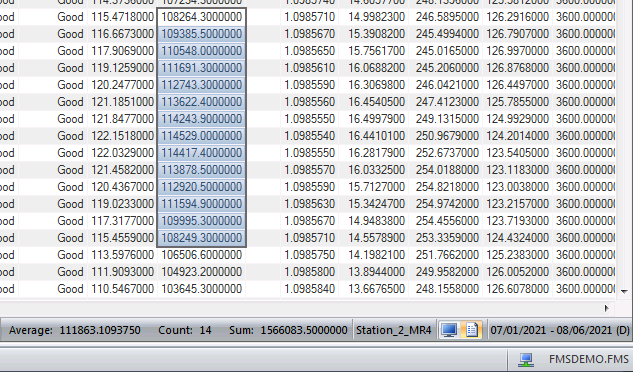
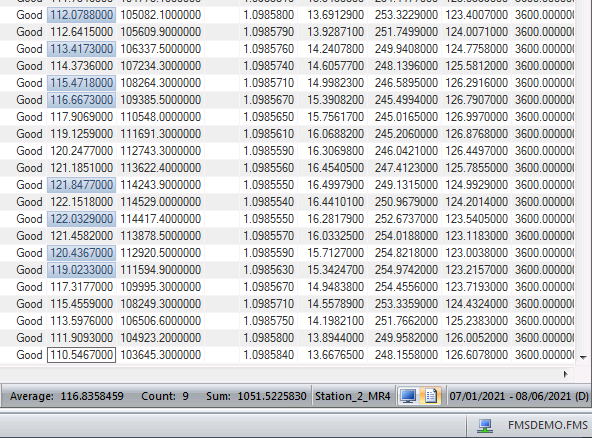
Within a single numerical data column, click and drag to select contiguous cells, or Ctrl + click for non-contiguous cells, to display the Average, cell Count, and Sum of the selected data cells in the status bar. Decimal precision of the displayed results is determined by the level you select in the context menu options.
Contiguous selected cells are indicated by color and a box around the entire range selected, with white background around the first cell selected. The average, count, and sum of the selected cells are displayed in the status bar below the data grid.
|
Average and Sum |
Non-contiguous cells can be selected by pressing Ctrl+click. Selections are indicated by color, with a box around the last cell selected, which will also have a white background. The average, cell count, and sum of the selected cells are displayed in the status bar below the data grid.
|
Average and Sum |
Managing History Grid Data
Toolbar
Use the History Grid control toolbar to access options to manage the data you are viewing. See Menus and Toolbars for more information.
|
History Grid control toolbar |

The following options appear on the toolbar; unavailable buttons appear dimmed.
| Option | Description |
|---|---|
|
|
Click to Refresh the control view. Note: The Refresh button will not take into account changes made through the Options pane that have been selected but not yet applied. See Refresh Button for more information. |
|
|
Click to Save data that has been edited. Edited records are not changed until they are committed using the Save action. |
|
|
Click to Cancel uncommitted edits and refresh the control. |
|
|
Click Click the down arrow to access view options available in the drop-down menu. Options are as follows.
|
|
|
[The Print button is not available on this control.] |
|
|
Click Click the down arrow to access export options available in the drop-down menu. Options are as follows.
|
|
Note: The Data mode selector is made available only when a station meter Node (a Gas Meter Node configured to also function as a station) is selected. When a station meter Node is selected, click to access the drop-down menu to select a Data mode to use to view history data for the Node. Options are as follows.
Note: When device data is normalized to station data it is converted into, and stored and reported in, hourly increments. Selection of Station data mode for a station meter Node means the records are shown in the client application as hourly increments by default. The option is made available via the Options Pane to display results as a daily record span if desired. Default value is Device view. |


Context Menu
Use the context menu to access options to perform edits, view audit records, and modify your data view. Some of these actions, and some navigation of the data grid, can also be accomplished using keyboard shortcuts, as noted. See Using Keyboard Shortcuts for more information.
Right-click in the column header row to access the option to display/hide the Field Chooser so that you can customize which columns to display in the grid. See Using the Field Chooser for more information.
Right-click in a data cell, or drag to select multiple cells and then right-click, to access the following context menu options. See Editing Data in the History Grid for more information about making edits using these options.
Note: You must have sufficient security credentials to perform edits. See FMS Security for more information.
| Option | Description | |
|---|---|---|
|
Copy Row |
Click Copy Row to copy the value of the entire row(s) selected, to paste into another location. See Note after this table regarding using the clipboard to copy/paste between FMS data grids and external applications. See Editing Data in the History Grid for more information. |
|
|
Copy |
Click Copy to copy the value from the selected data cell(s) to paste into another location. Alternatively, press Ctrl+C to copy values using a keyboard shortcut. See Note after this table regarding using the clipboard to copy/paste between FMS data grids and external applications. See Editing Data in the History Grid and Using Keyboard Shortcuts for more information. |
|
|
Paste |
Click to Paste the copied value from another data cell into the selected data cell. Alternatively, press Ctrl+V to paste values using a keyboard shortcut. See Note after this table regarding using the clipboard to copy/paste between FMS data grids and external applications. See Editing Data in the History Grid and Using Keyboard Shortcuts for more information. |
|
|
Expand selected |
Highlight single or multiple parent rows and then click Expand selected to also view records for its children. Alternatively, press Ctrl+(keyboard)[=] (or Ctrl+(numeric keypad)[+]) to expand rows using a keyboard shortcut. See Using Keyboard Shortcuts for more information. |
|
|
Collapse selected |
Highlight single or multiple rows and then click Collapse selected to hide any child rows from view and show records only for the parent rows. Alternatively, press Ctrl+(keyboard)[-] (or Ctrl+(numeric keypad)[-]) to collapse rows using a keyboard shortcut. See Using Keyboard Shortcuts for more information. |
|
|
Mass fill |
Highlight multiple cells, in single or multiple columns, to set all editable cells to the same value within each selected column. Alternatively, press Ctrl+M to perform a mass fill using a keyboard shortcut. See Editing Data in the History Grid and Using Keyboard Shortcuts for more information. |
|
|
Linear fill |
Highlight multiple cells, in single or multiple columns, to do linear interpolation between the first and last value within each selected column. Alternatively, press Ctrl+L to perform a linear fill using a keyboard shortcut. See Editing Data in the History Grid and Using Keyboard Shortcuts for more information. |
|
|
Zero flow |
Select the record row(s) to reset, and then right-click to access the Zero flow context menu option, to zero out flow values for the selected record(s). The specific values to be zeroed out correspond to the device type selected. Values are set to zero as follows.
Alternatively, press Ctrl+0 (zero) to perform a value adjustment using a keyboard shortcut. See Editing Data in the History Grid and Using Keyboard Shortcuts for more information. |
|
|
Adjust value |
Click to access the Adjust value dialog box, to make edits to the selected cells. You can edit the cells either by numerical values or by percentage values. Alternatively, press Ctrl+J to perform a value adjustment using a keyboard shortcut. See Editing Data in the History Grid and Using Keyboard Shortcuts for more information. |
|
|
Ignore exceptions |
Once you have analyzed the data associated with the selected row(s), you can click to access the Ignore exceptions dialog box and ignore exceptions triggered by the selected record(s). See Ignoring Exceptions for more information. |
|
|
Click to recalculate the history record. Notes: The Recalculate option is available only for gas device records. It appears dimmed when station or liquid device records are selected. Once edits to a record produce a Data Source of User Override, further recalculations to the record can be accomplished either manually or automatically. To recalculate the history manually, use this Recalculate option. Alternatively, recalculation of user-edited data can be configured as a system option to occur automatically. See Editing Data in the History Grid for more information about manual recalculation. See Configuring System Options for more information about automatic recalculation. |
||
|
View audit record |
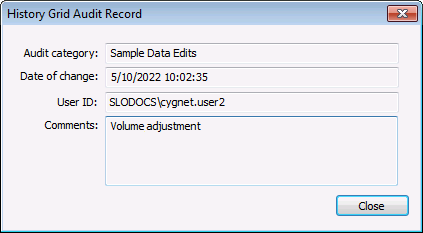
Click to access the History Grid Audit Record dialog box, to retrieve and view the audit record for the selected data.
The audit record (when it exists) displays the audit category, the date/time of the change, the name of the Site\User that made the change, and any comments that may have been entered regarding the change. |
|
|
Click to select Decimal precision for the display from 0 - 10 decimal places. Default value is 7. Notes: If you modify a value to a decimal precision that exceeds the value configured for the control, the edits will take one of two paths. If the edit causes the value to be rounded to a new, higher number, then the change is treated like an edit and the Save and Cancel buttons on the Tools menu become available. If the edit does not cause any rounding to occur, then the original value is restored and the Save and Cancel buttons remain disabled. Although values are shown in the History Grid control with a decimal precision of up to 10 places, device Node values are shown in the Batch, Ticket, Liquid Device QTR and Liquid Device Raw QTR reports with a decimal precision of 15 places. |
Note: You can copy data between FMS data grids and external applications such as .xlsx documents. Copying data from non-contiguous rows or columns in .xlsx files into other grids may copy the entire span rather than copying only the selected cells. To avoid this possibility, you can first hide the unwanted columns or rows in your source document, and then copy/paste the desired cells. Redisplay the hidden columns when you are done.
More:
 Editing Data in the History Grid

